How to Create Audiobook
 How to Create Audiobook
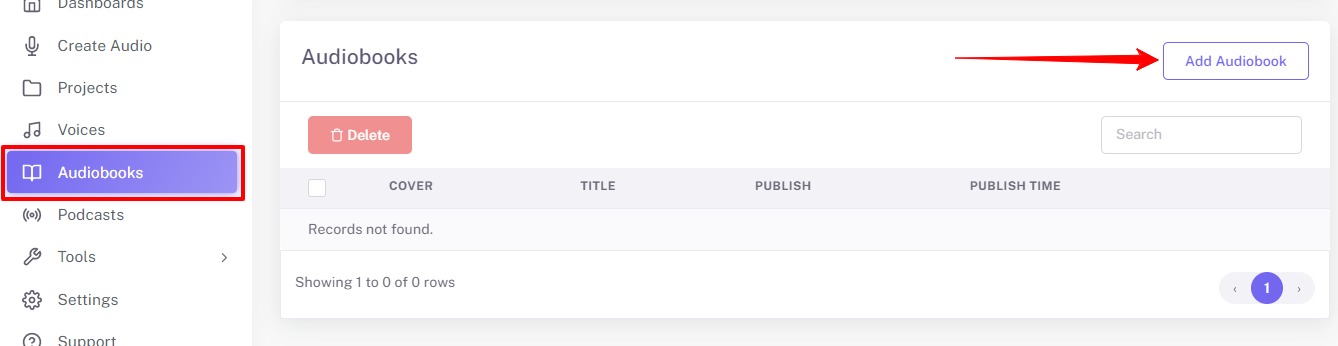
Go to the Audiobooks page from the laft side navigation and click the "Add Audiobook" button.
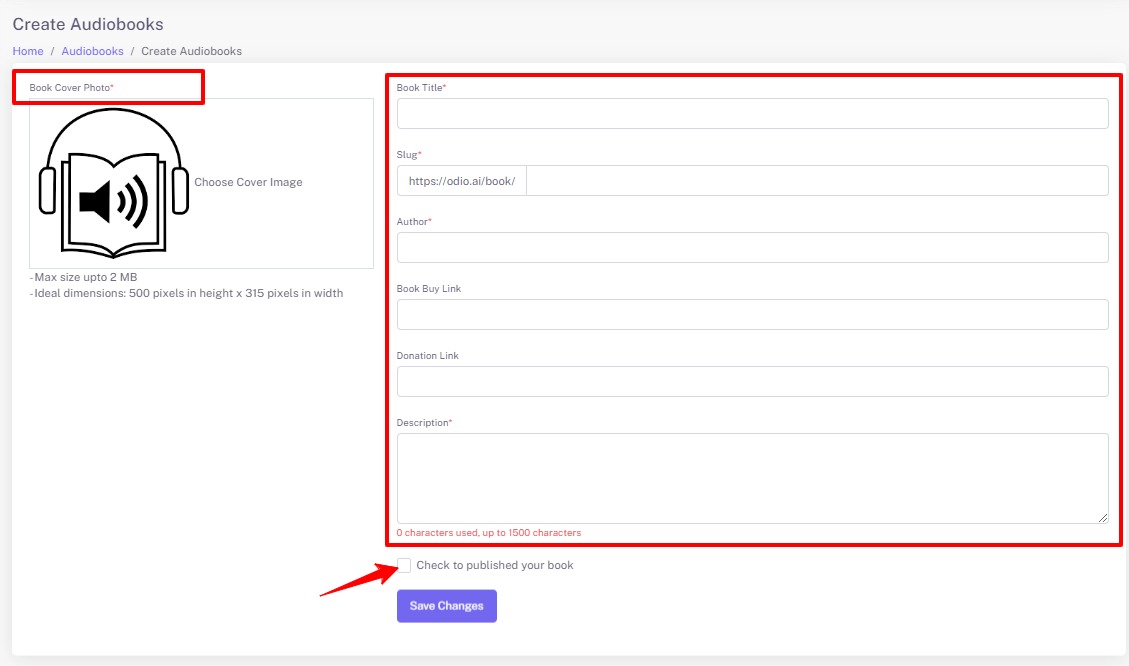
Fill out the information about your audio book as cover photo, title of the book, slug, author, description, etc. Check the "Check to published your book" box when your audio book is ready to be published.
Once you have successfully completed the information, you can see the "+" icon in front of your audio book entry. Click this to add chapters in your audiobooks.
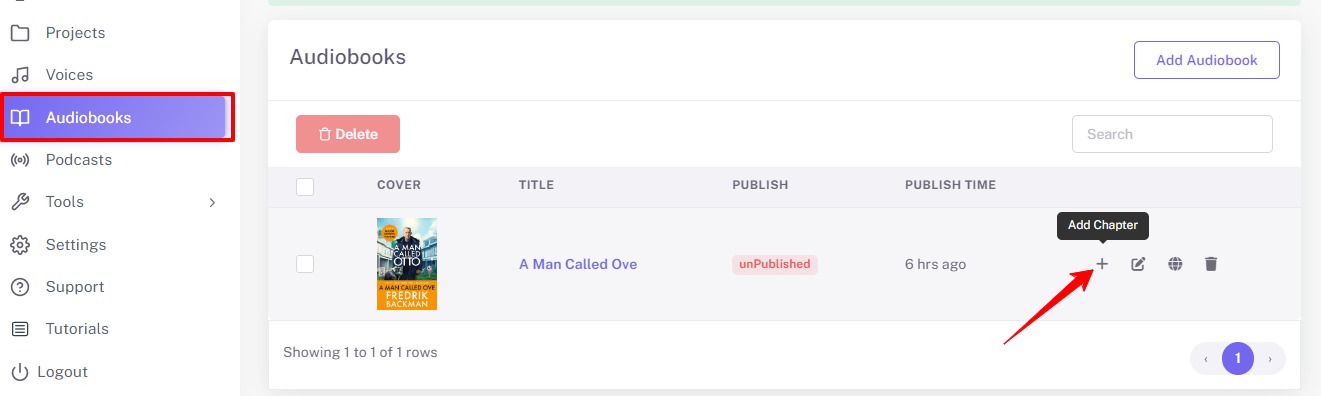
Click on "Add Chapter" button to add audiobook chapters. "Edit Book" button to change the audio book details. The "Public Page" button will work once the audiobook is published.
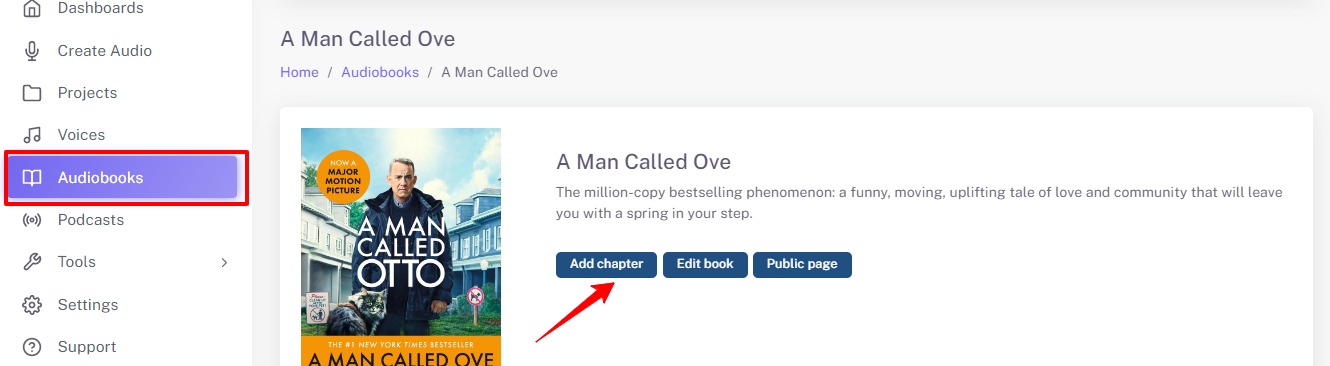
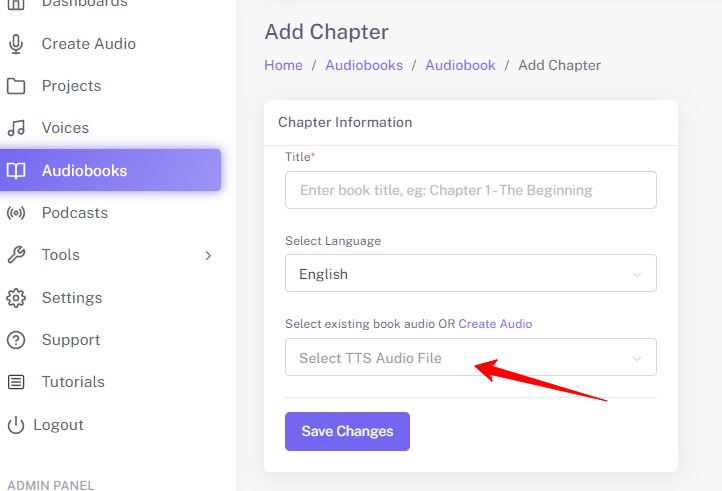
Fill in the chapter details and choose the audio file for that chapter. Every chapter should be added one by one. It is not possible to upload audio files from your local system, you can just choose the audio file created on Odio.ai platfrom.
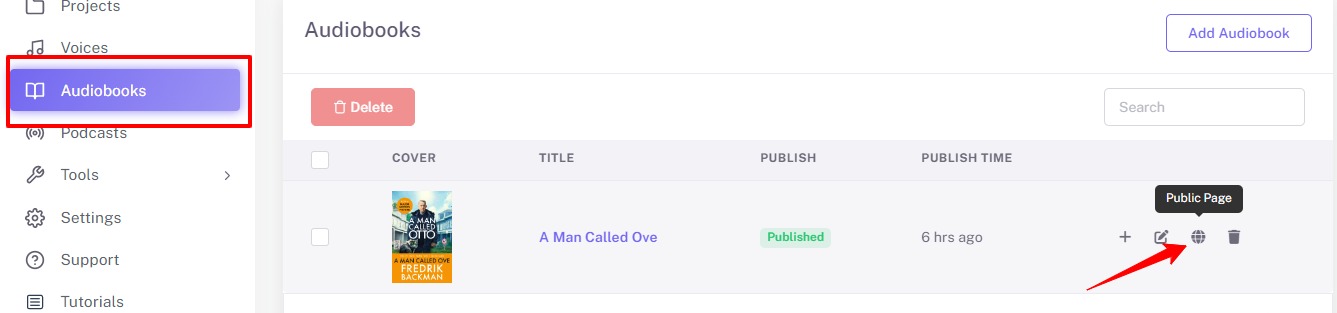
Once you are done with this, you can get your audio page link from your audio book listing page.